Create/Edit Event – Investor Selection
For a short video on self organized events after you activated the additional process steps see here. But we
also provide you with a written step-by-step description on the following pages.
The first screen is the Investor selection screen, where you can select the investors you want to invite to your event.
The list with ticked by default filter ‘linked investors’, will only show you those investors in the specific location that you have either met in the past or have linked manually.
You can further filter this list with other filters, for example, ‘tags’, e.g. if you are organizing a series of update calls with the CEO you might only want to reach out to your Priority 1 investors. If you don't have tagged them accordingly you can do that with two clicks. For details on how to assign tags see section View, delete and add investor specific tags (via investor profile)
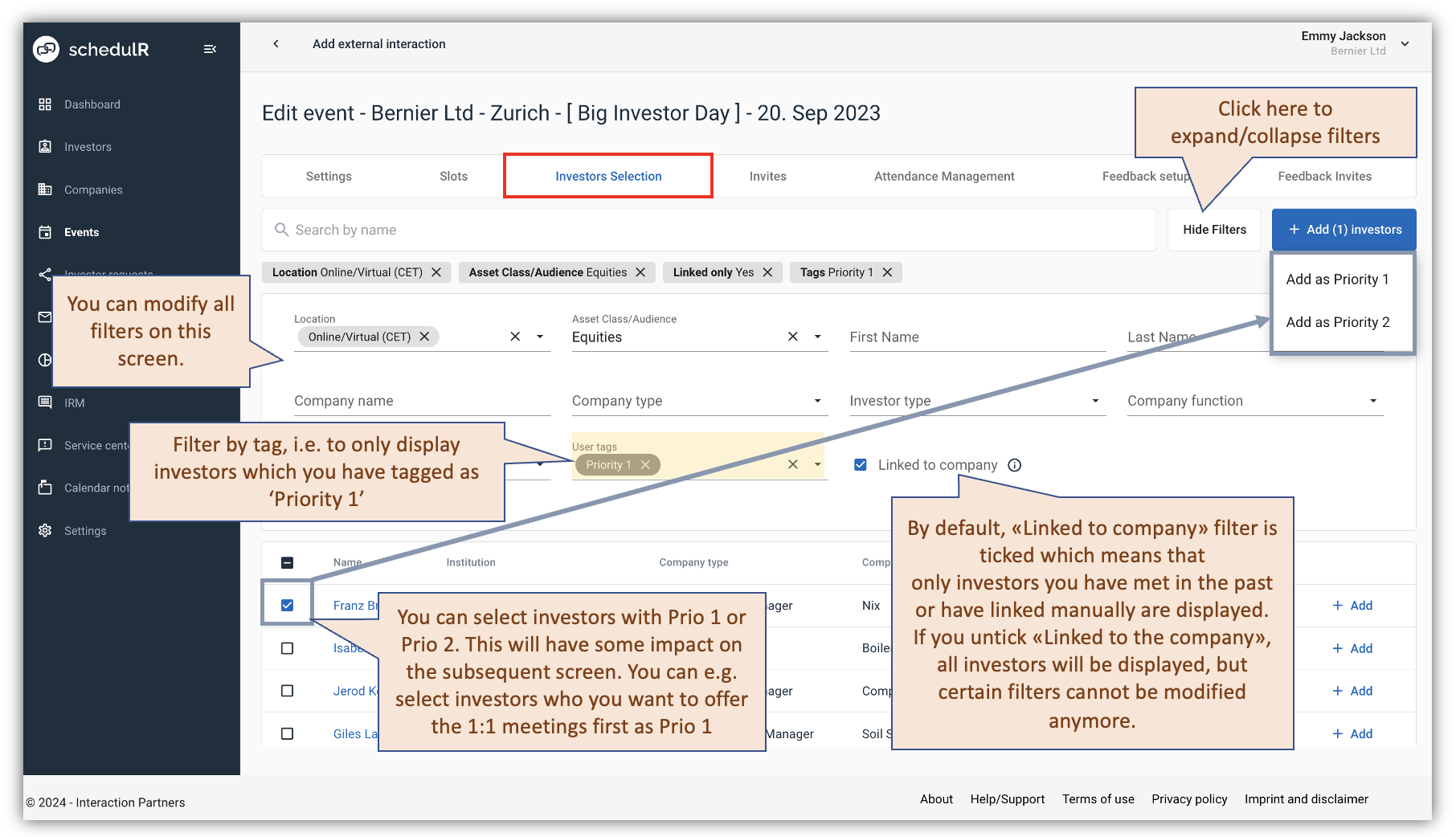 Figure 7.12 – Create/Edit Event – Investor Selection – Basics
If you untick «Linked to the company», the list will be pre-filtered by your event settings (location, asset class) and your company settings (stock-exchange country, sector, market cap, liquidity).
Please note that once you have selected investors here, you need to move them to the next tab (‘Invites’) to
be able to send them actual invites. You do not have to select all investors in one go, you can also do that step-
by-step (e.g. starting with Priority 1).
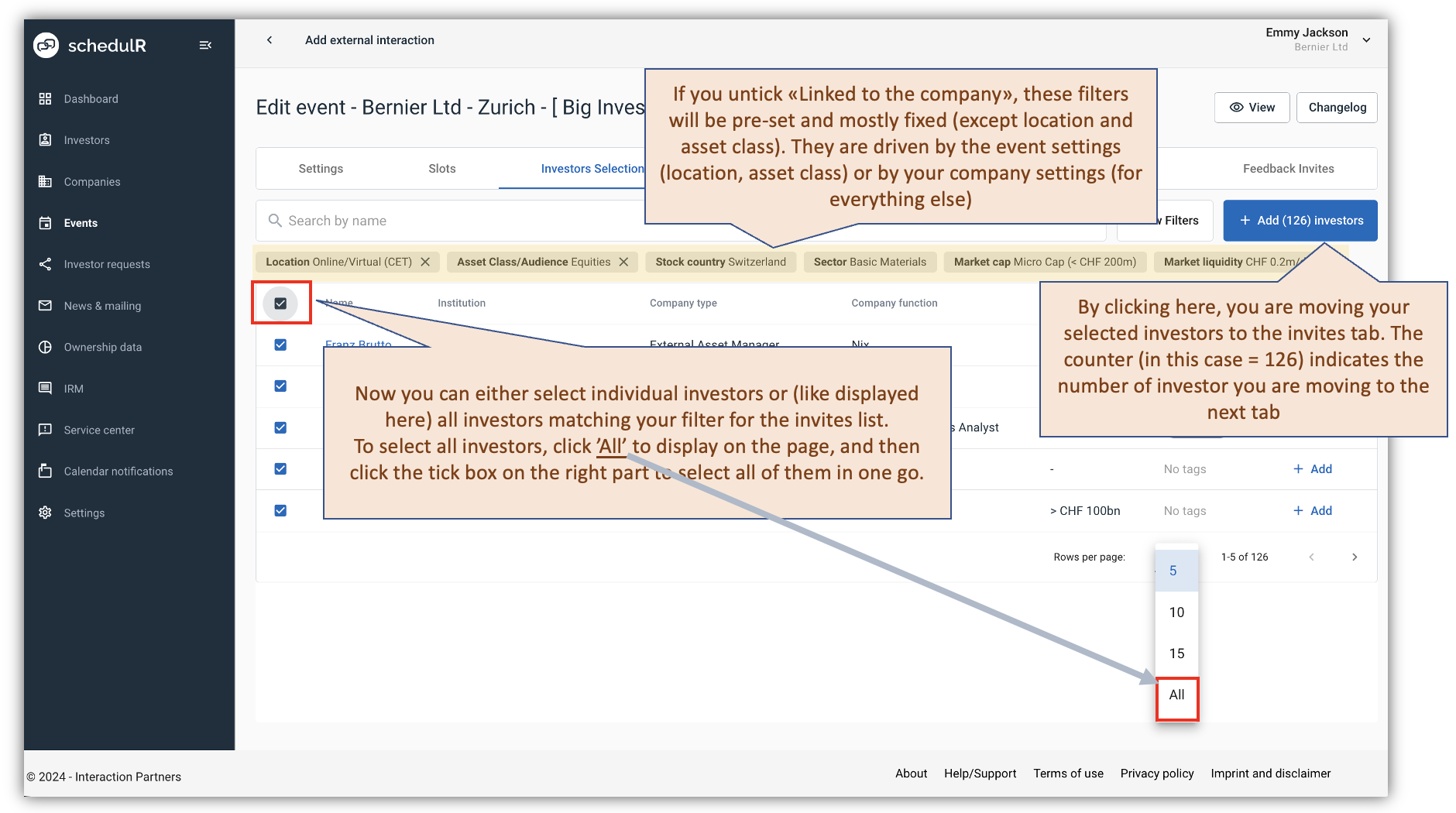 Figure 7.13 – Create/Edit Event – Investor Selection