Distribution Channels
With schedulR you have a variety of distribution channels you can choose, depending on your permission levels and where you are located (SIX e.g. only is available for companies listed at the SIX). The selection screen looks like this
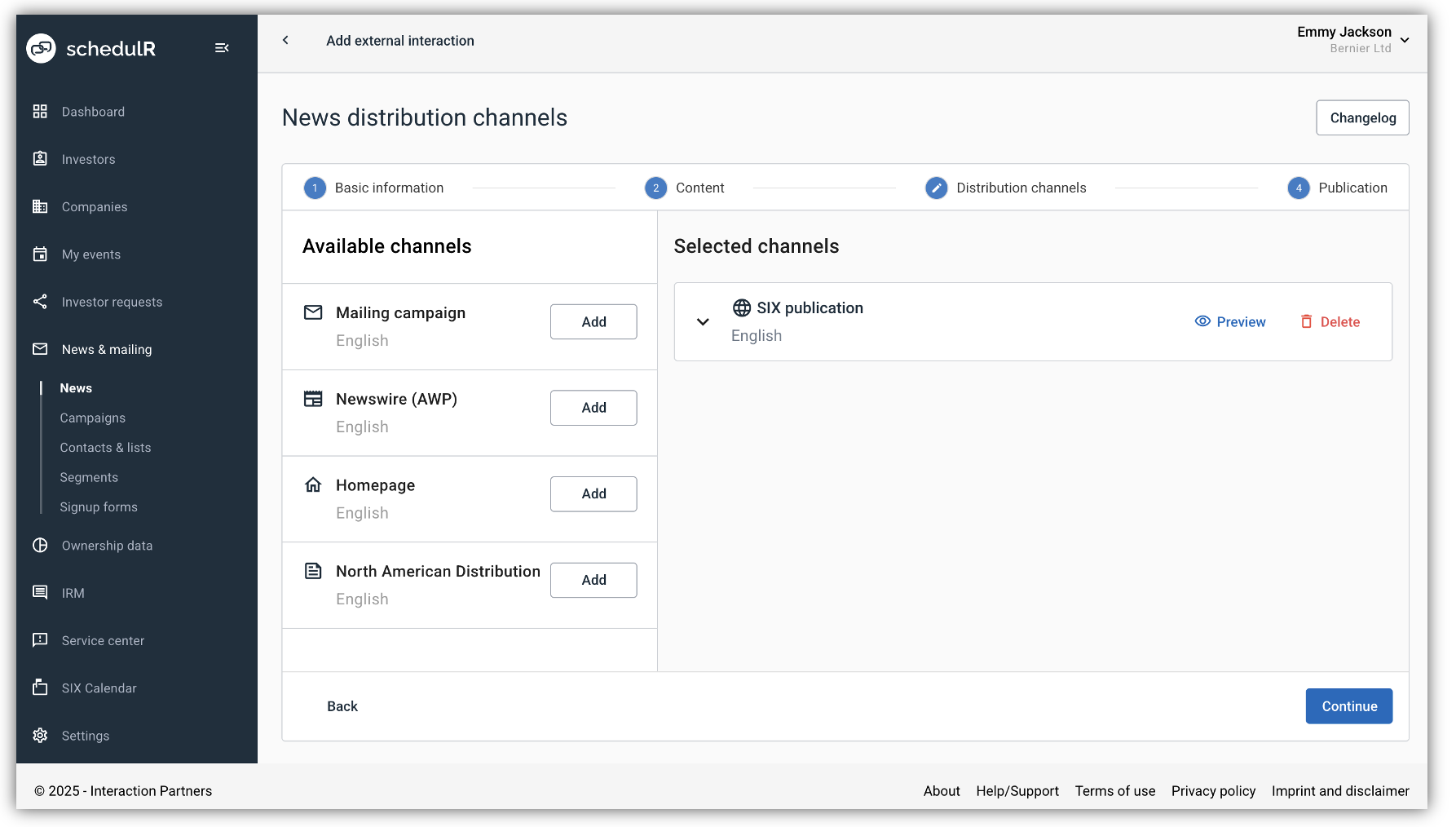 Figure 9.9 – News – Distribution Selected Channel
if you have selected a channel it will disappear in the column available channels and will be displayed in the column ‘selected channels’. For an overview of the audience you can reach with each channel see below.
SIX
We will send (via API) to SIX consolidated newsflow (here) and to company-specific SIX subpage. SIX API does not cover Connexor, yet
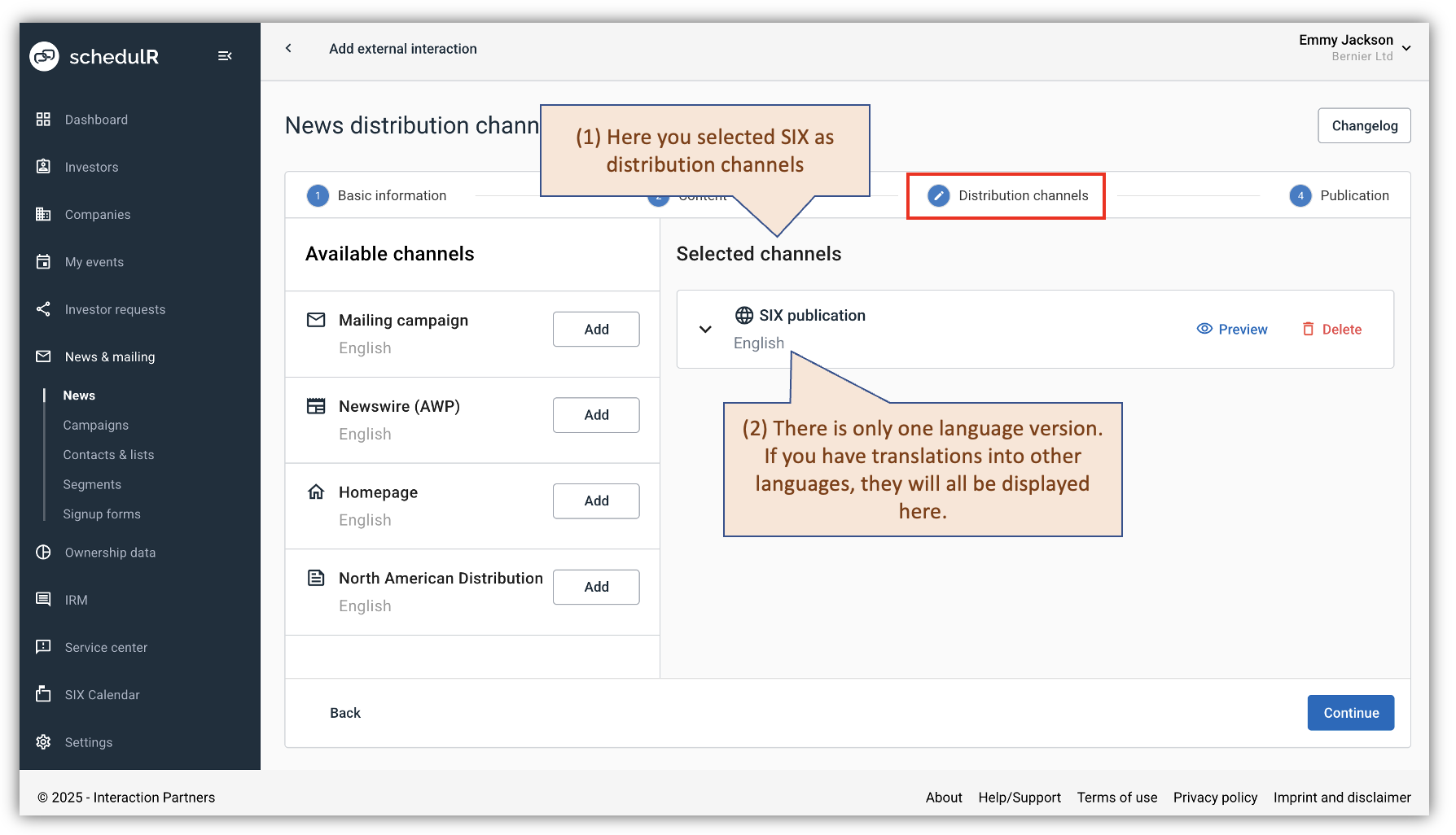 Figure 9.10 – News – Distribution Channel - SIX
Email
Below we will cover how you can additionally distribute your news item via email. The topics of
distribution lists, how to add them, advanced segmentation and sign-up forms are covered in section
Mailing contacts, distribution list, segmentation, sign-up forms
If you add ‘Mailing Campaign’ as distribution channel the following process will start
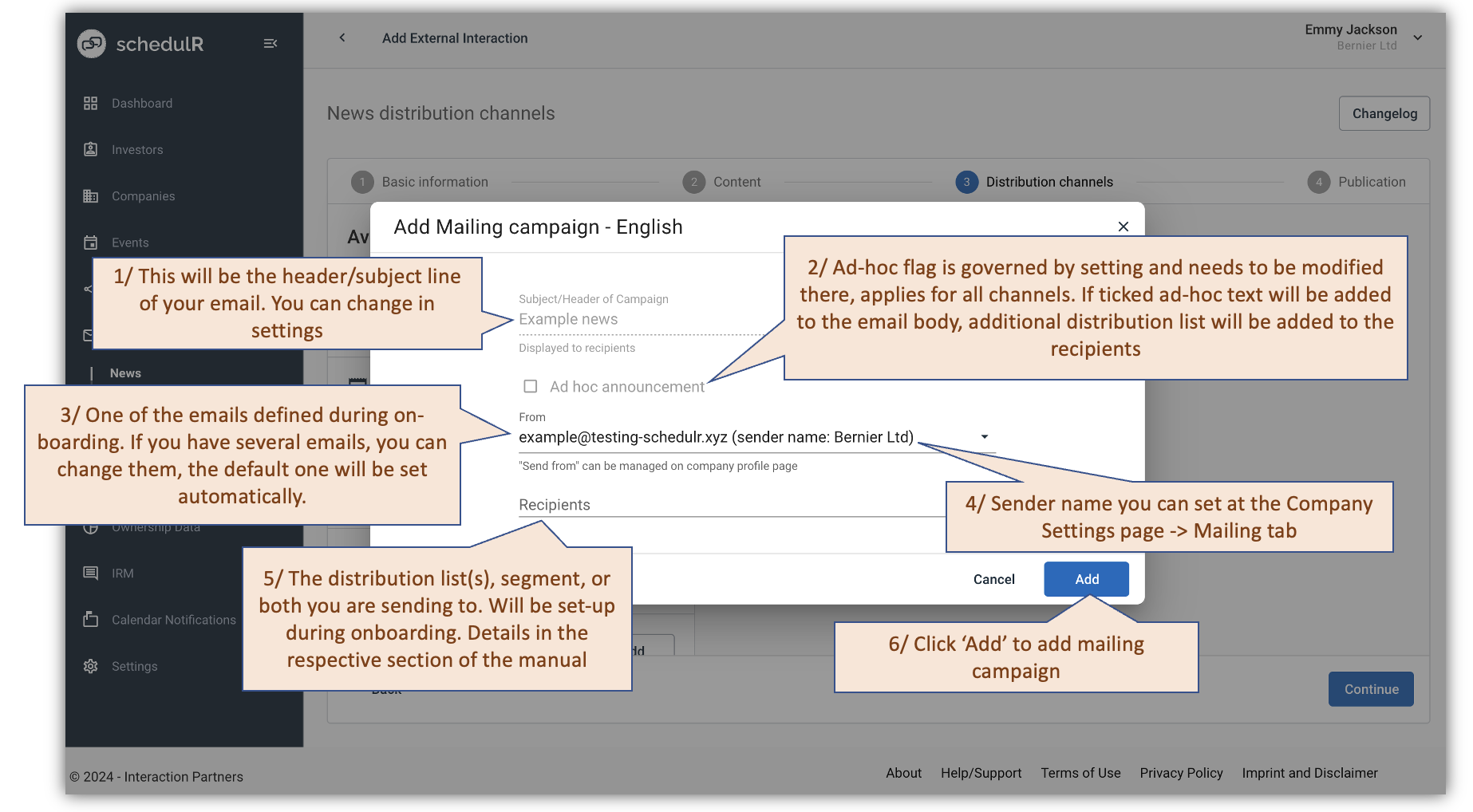 Figure 9.11 – News – Distribution Channel - Email
A remark on the ‘ad-hoc’ tick-box: If you want to publish news as ‘ad-hoc’ you have to adhere to certain
requirements set by your exchange. For the SIX - Swiss Exchange we have implemented that process as far as
possible (and are looking into additional improvements).
Ticking the ad-hoc box triggers the following:
- We add an additional distribution list to you distribution. This list includes all mandatory recipients
(Newsrooms, newspapers). Double entries are filtered out, so nobody receives your email twice - We add the additional regulatory disclaimer ‘Ad hoc announcement pursuant to Art. 53 LR’ to the
Email subject and the Email body. You can decide in which language (EN, FR, DE).
If you have filled in all the required details, you will be presented with the following screen summarizing your
data.
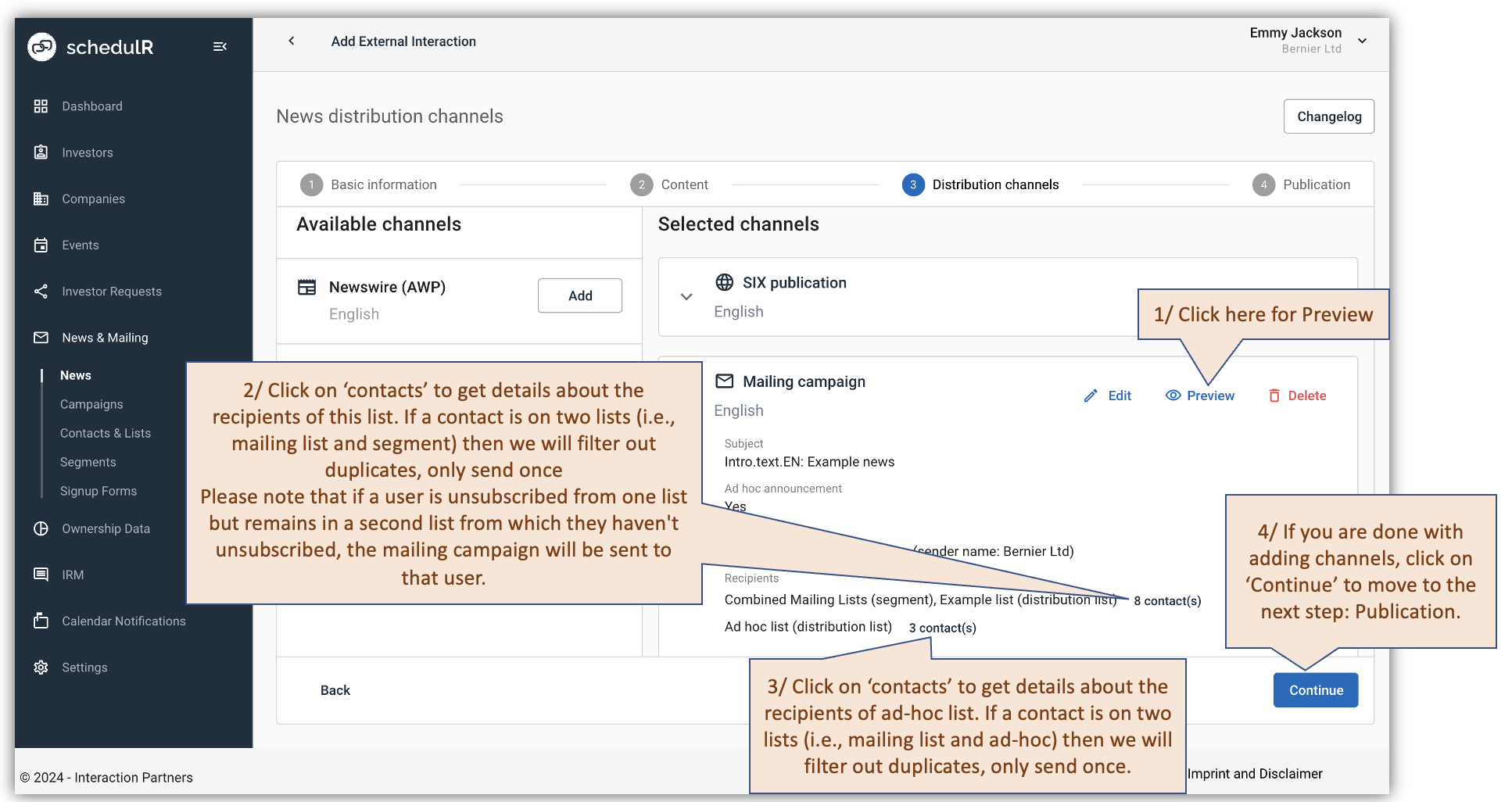 Figure 9.12 – News – Distribution Channel – Email
Before publishing, you can send the news to your email to check if everything looks as it should.
To send test email, click 'Preview' button on the mailing and then 'Content preview' popup will be displayed. See below for details.
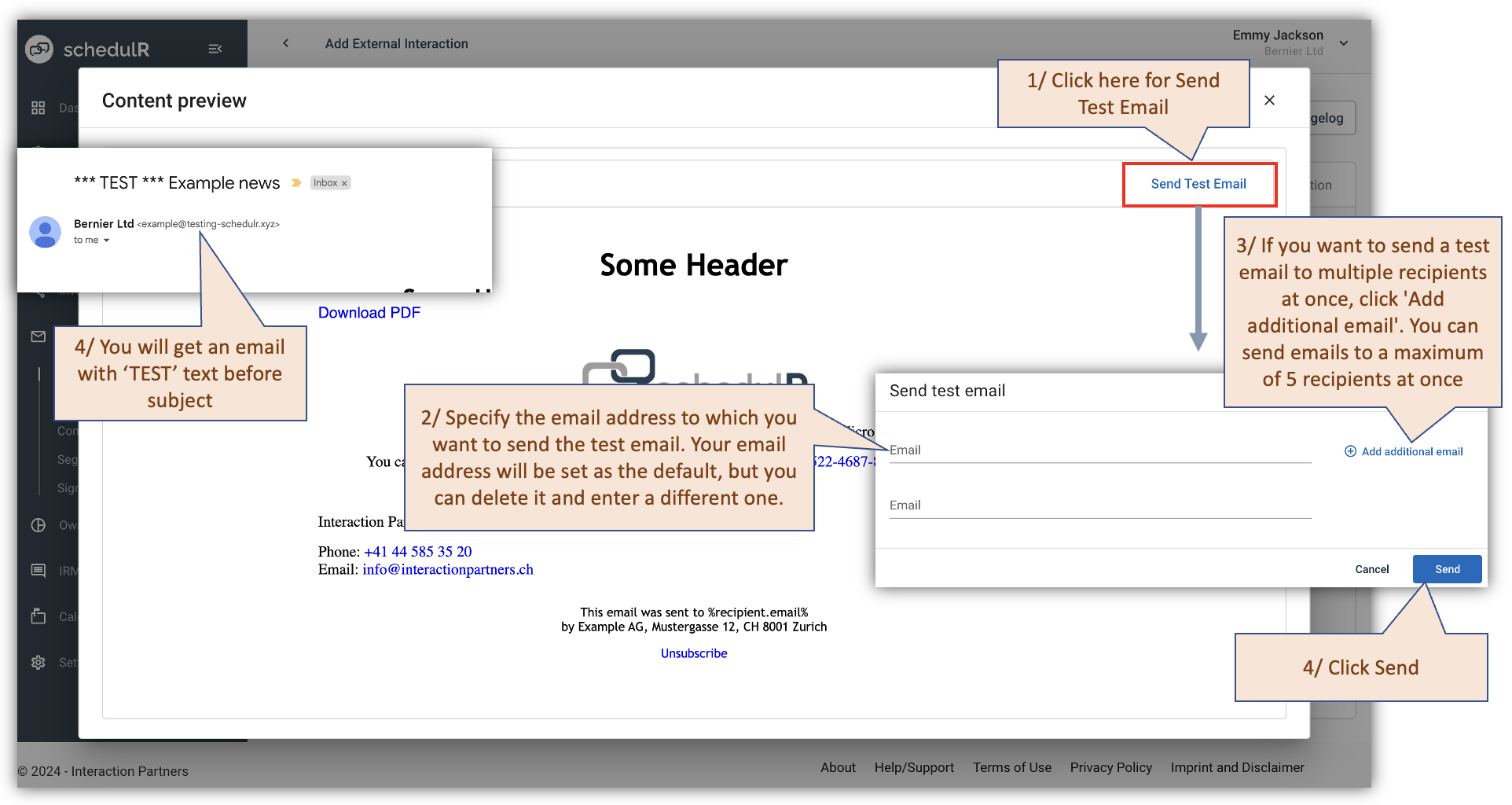 Figure 9.13 – News – Distribution Channel – Send Test Email
AWP
Below we will cover how you can additionally distribute your news to AWP.
Background: We probably need to start with the difference of sending an email to the newsroom (i.e. the
journalists) of AWP and using our AWP distribution channel.
If you send an email to AWP e.g. about your results, the AWP journalists will decide how important the news is
and if and when they will write about it.
If you send your news via our electronic interface to AWP then it will be published instantly – within seconds -
to the AWP network (including Bloomberg, Thomson Reuters, Swissquote, UBS) without any changes. It will be
clear that it is not a journalistic comment, but it will also be distributed if the AWP journalists will not cover the
news item.
The journalistic coverage of an event by AWP journalists and the electronic distribution of your news via AWP
network are totally unrelated.
How does it work: Assuming you have the respective permissions, you can just add the distribution channel
AWP like any other channel. Please note that (like with mailing) each language will be separate channel. Title
and ad-hoc flag (if appliable) will be taken from the previous steps. Now you can select optional ‘news
categories’. This is optional. For listed companies, the news will in any case be tagged with the correct
company and country.
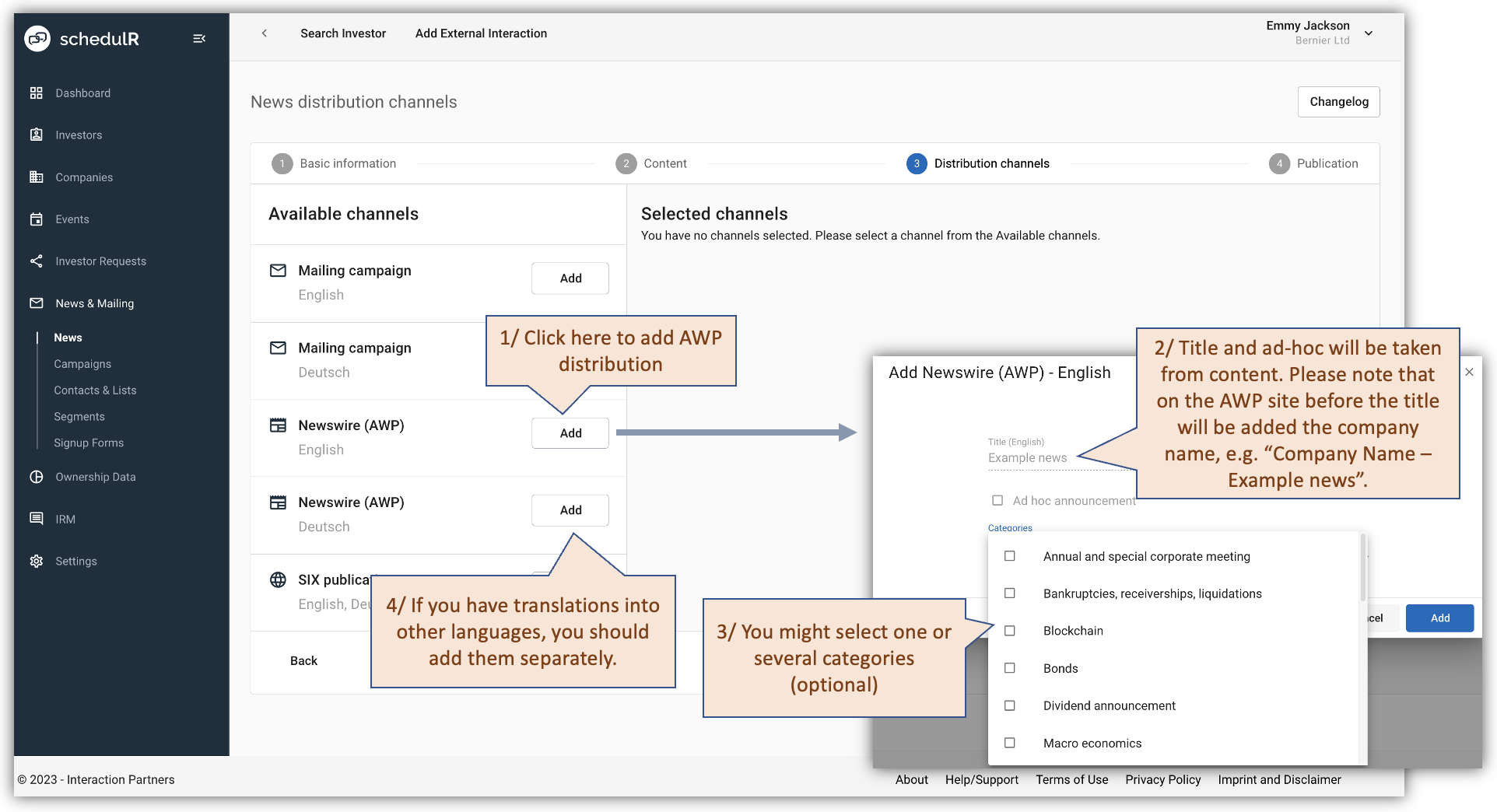 Figure 9.14 – News – Distribution Channel –AWP
While SIX and Mailing can display URL links, AWP cannot. This means for AWP distribution channel:
-
Pictures will not be displayed: That means it is totally fine to use logos and pictures for SIX and
Mailing, but avoid references in the text to those, as they will be filtered out.In our example the disappearance of the “BIG NEWS” picture does not impact the content in the AWP
distribution. -
Masked Links will be deleted: If you have a link that is masked, i.e. hidden behind a clickable word or
sentence that differs from the actual URL it will also be filtered out.In our example Download PDF PressRelease - English will be filtered out. That is not a problem as
again there is no reference in the text. If we would have written “Please find the English Press release
here. That would be more problematic -
Unmasked links will just not be clickable: If you have an unmasked link, i.e. the actual URL and the
text it is linked to are identical, the text will remain. It will just not be clickable anymore.In our example www.example.com/bignews will just become www.example.com/bignews. So, the
respective sentence makes still sense, and if someone wants to follow the link, they just to copy-past
the link into her browser.
Practical implications of these automatic adjustments: if you want to use the same content for SIX/Mailing and
AWP you need to adhere to the following practical rules
- Do not make reference in the text to pictures or masked links
- If you want an URL link to be visible in AWP it must be unmasked. This works well if you refer to e.g.
the news section of your homepage but does work for attachments (as the links need to be hashed,
which will make them very long/ugly.
In any case in the AWP preview (see picture above) you can see what will be taken out.
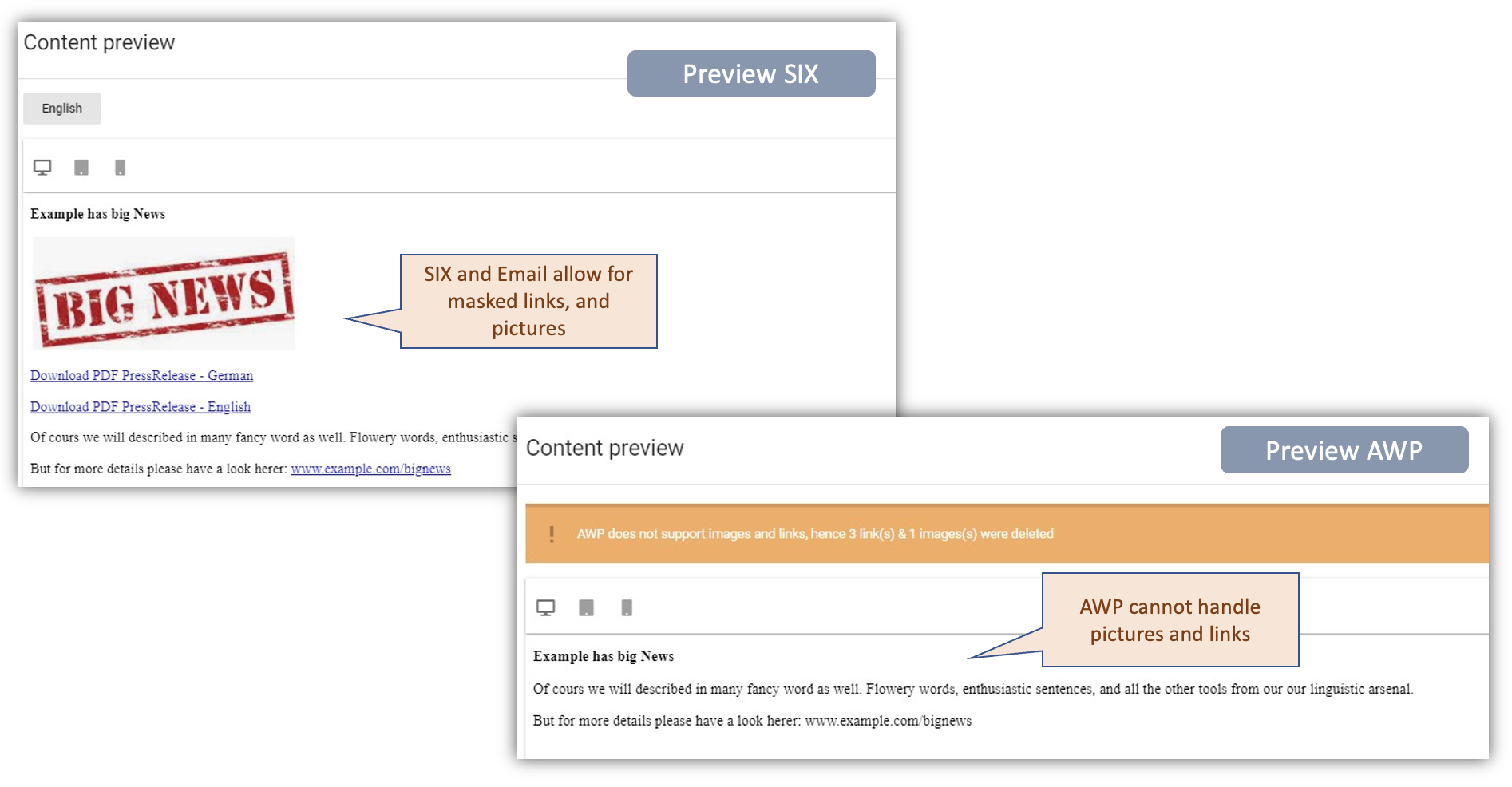 Figure 9.15 – News – Distribution Channel – Preview
Your Homepage
We send (via API or webhook) to your homepage, where it is displayed automatically. Display (logic, design, filter) on homepage is managed and set-up by yourself.
To successfully post news, a webhook must be active, and a link to your homepage added. See the screenshot below.
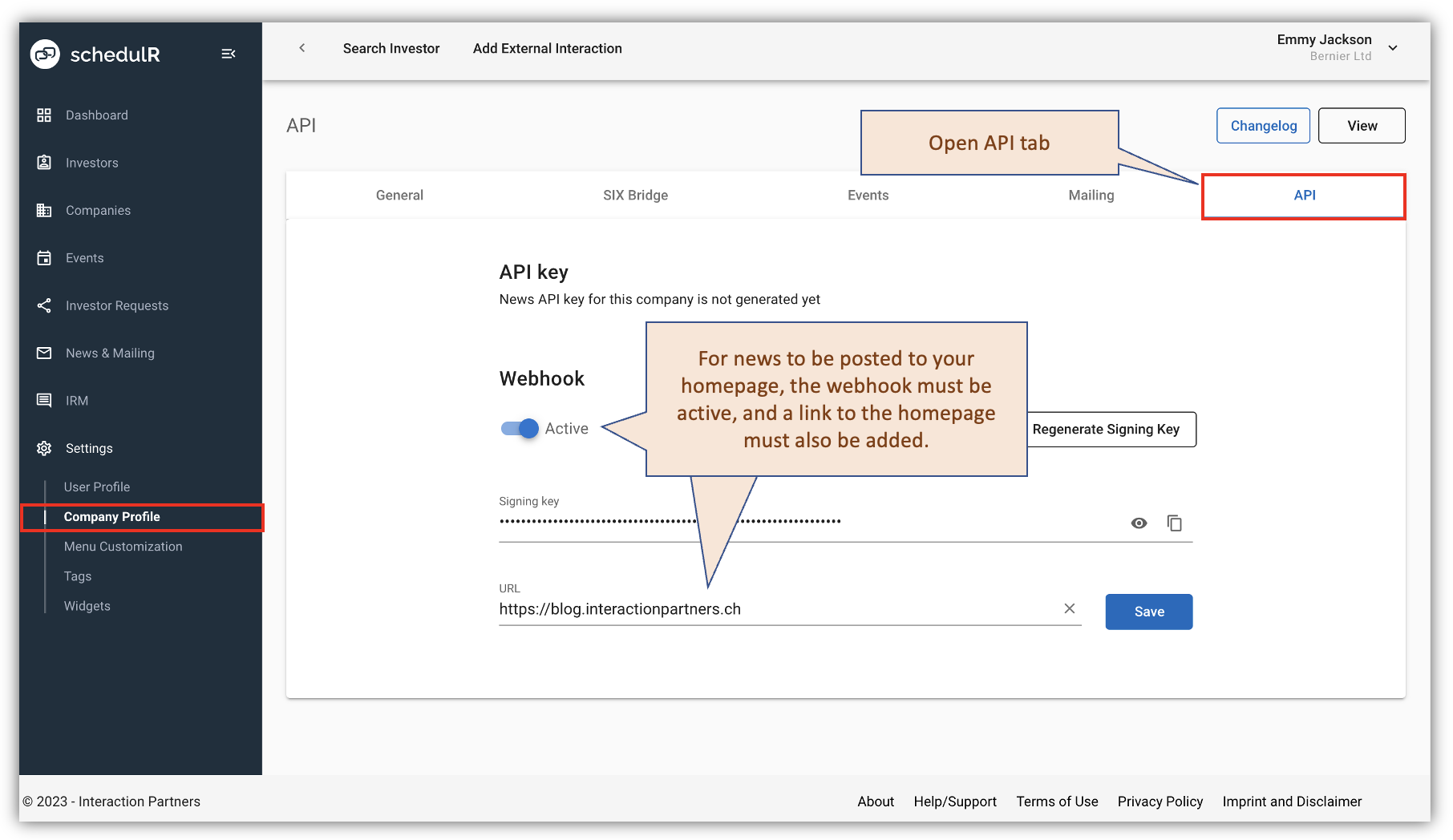 Figure 9.16 – News – Distribution Channel – Homepage
After you have prepared the news (see previous section Creating a News item ), the next step is to choose the distribution channel of your homepage.
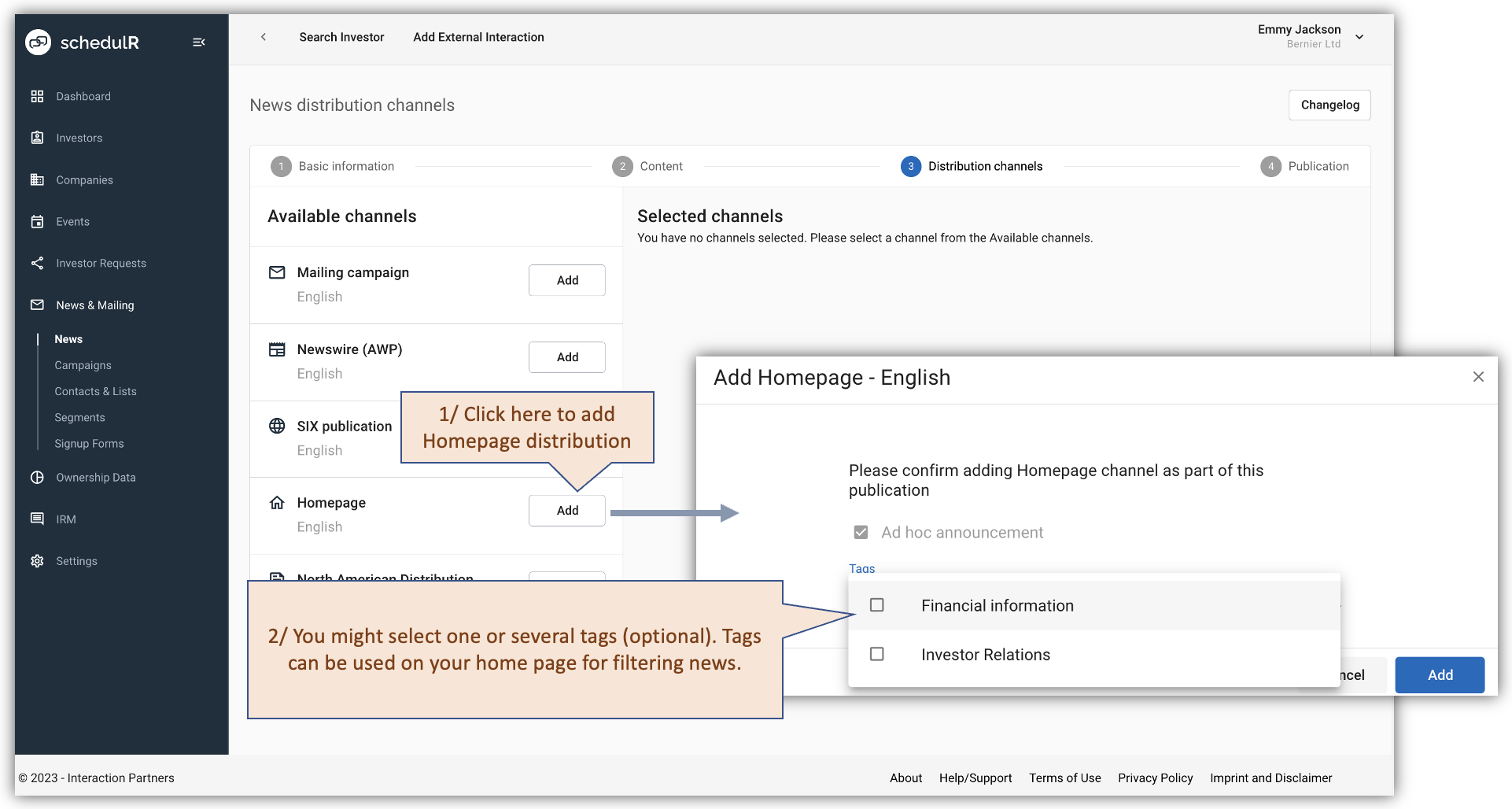 Figure 9.17 – News – Distribution Channel – Homepage - 2
For how to create/edit news tags, see below.
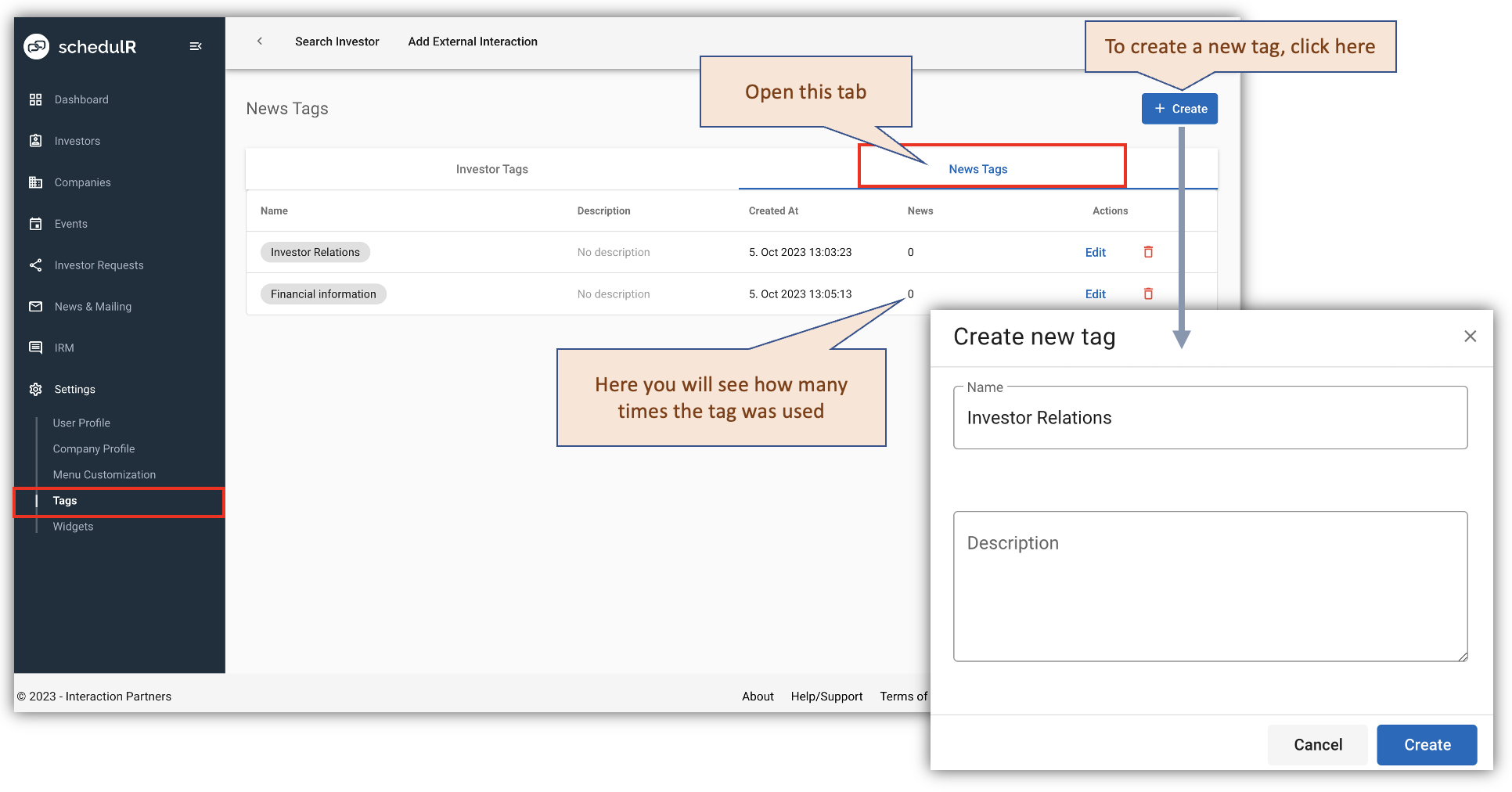 Figure 9.18 – News – Distribution Channel – Homepage - Add news tags
Please note that the appearance of the news on your home page may differ it will depend on the style of your page.
US distribution / Newsfile
Below we will provide more details about the audience you can reach with this channel, and how to select it For this channel we work with Newsfile, The full audience you can reach can be found here.
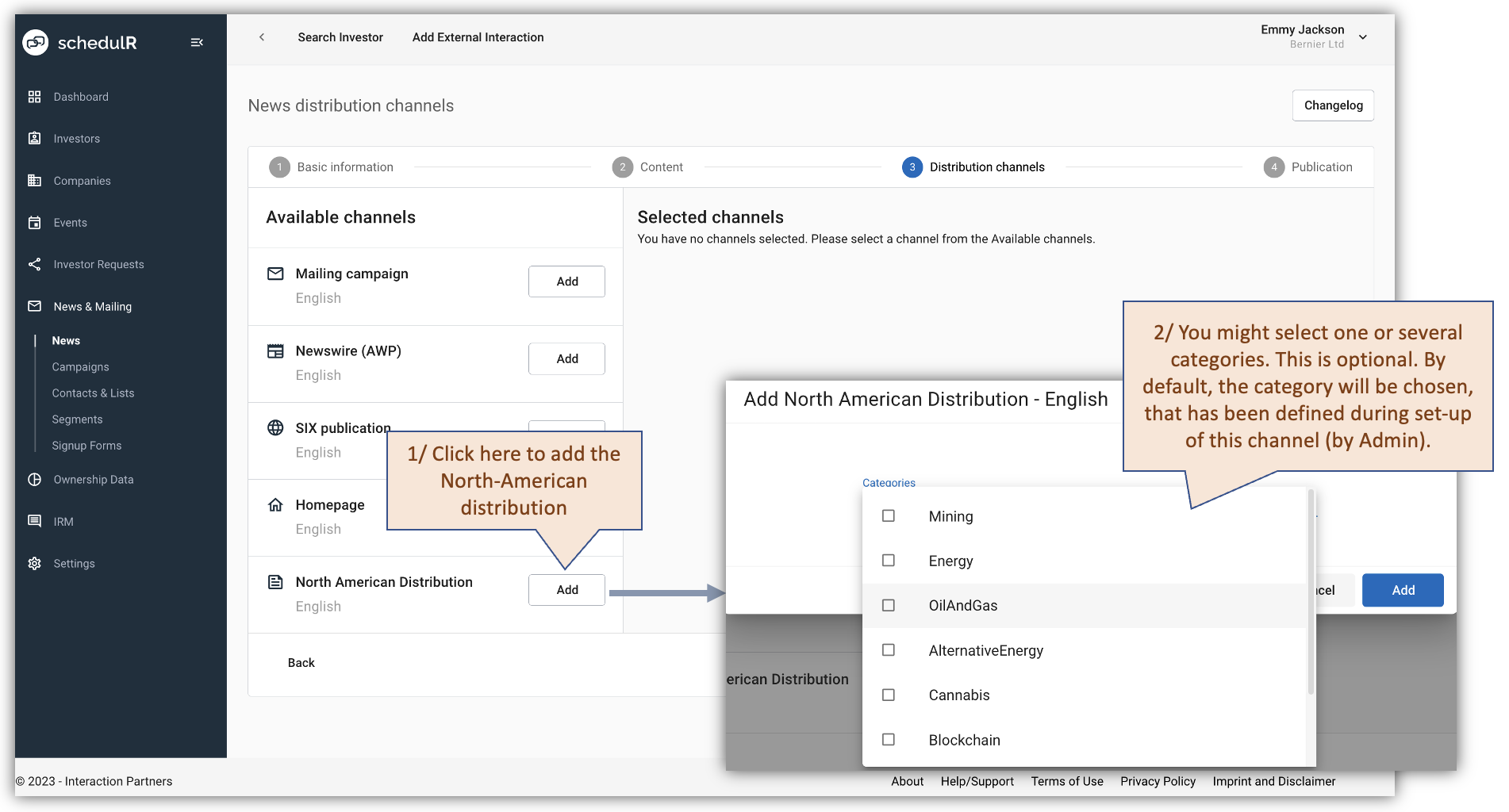 Figure 9.19 – News – Distribution Channel – Homepage - Add news tags
After you add distribution channels, you can go to the publishing the news.